
How to use this page
- Work through Tasks 1–5 and tick each step as you complete it. Your progress and answers are saved in this browser automatically.
- Wherever you see
 Screenshot, capture your lab progress and attach the screenshot right on this page. Add a short explanation for each.
 - Answer the Task 6 questions, then use Print / Save as PDF to export your answers and screenshots as one submission file.
- Remember to delete your lab resources after capturing everything.
Lab Objectives and Architecture reference
Lab scenario: Your organization is interested in Azure Web apps for hosting your company websites, which are currently hosted in an on-premises data center. The websites are running on Windows servers using the PHP runtime stack, and the hardware is nearing end-of-life. Your organization wants to avoid new hardware costs by using Azure to host the websites. Additionally, you will explore Azure Container Apps for containerized applications.
In this lab, you will:
- Task 1 — Create and configure an Azure web app 10 pts
- Task 2 — Create and configure a deployment slot 10 pts
- Task 3 — Configure Web App deployment settings 15 pts
- Task 4 — Swap deployment slots 15 pts
- Task 5 — Create and configure an Azure Container App and environment 30 pts
- Task 6 — Summary Questions & Review 20 pts
You will build this deployment across Tasks 1–5.
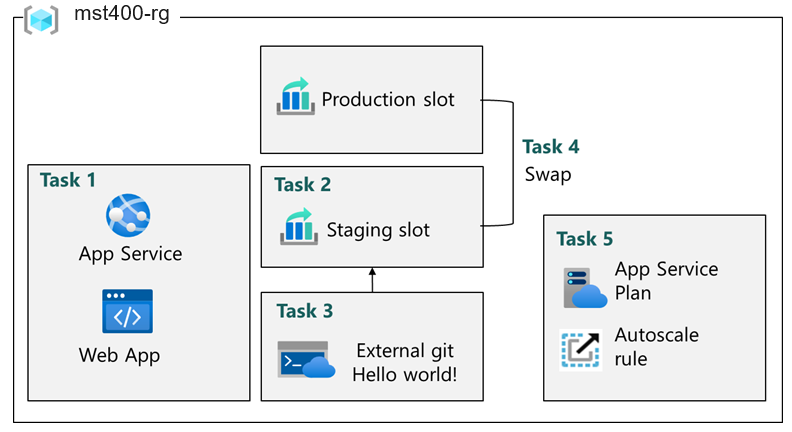
Task 1: Create and configure an Azure web app 10 pts
In this task, you create an Azure web app. Azure App Services is a Platform as a Service (PAAS) solution for web, mobile, and other web-based applications. Azure web apps is part Azure App Services hosting most runtime environments, such as PHP, Java, and .NET. The app service plan that you select determines the web app compute, storage, and features.
-
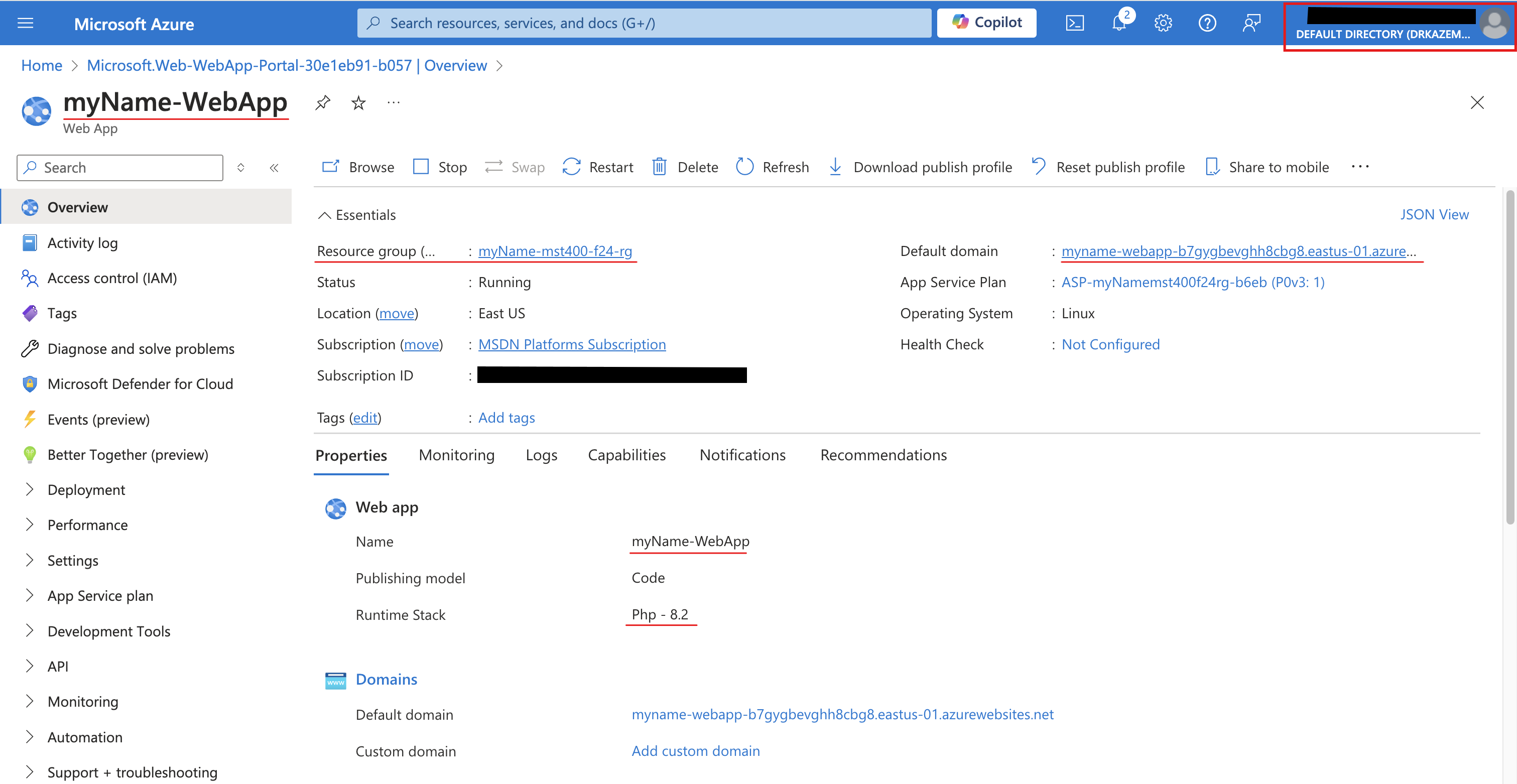
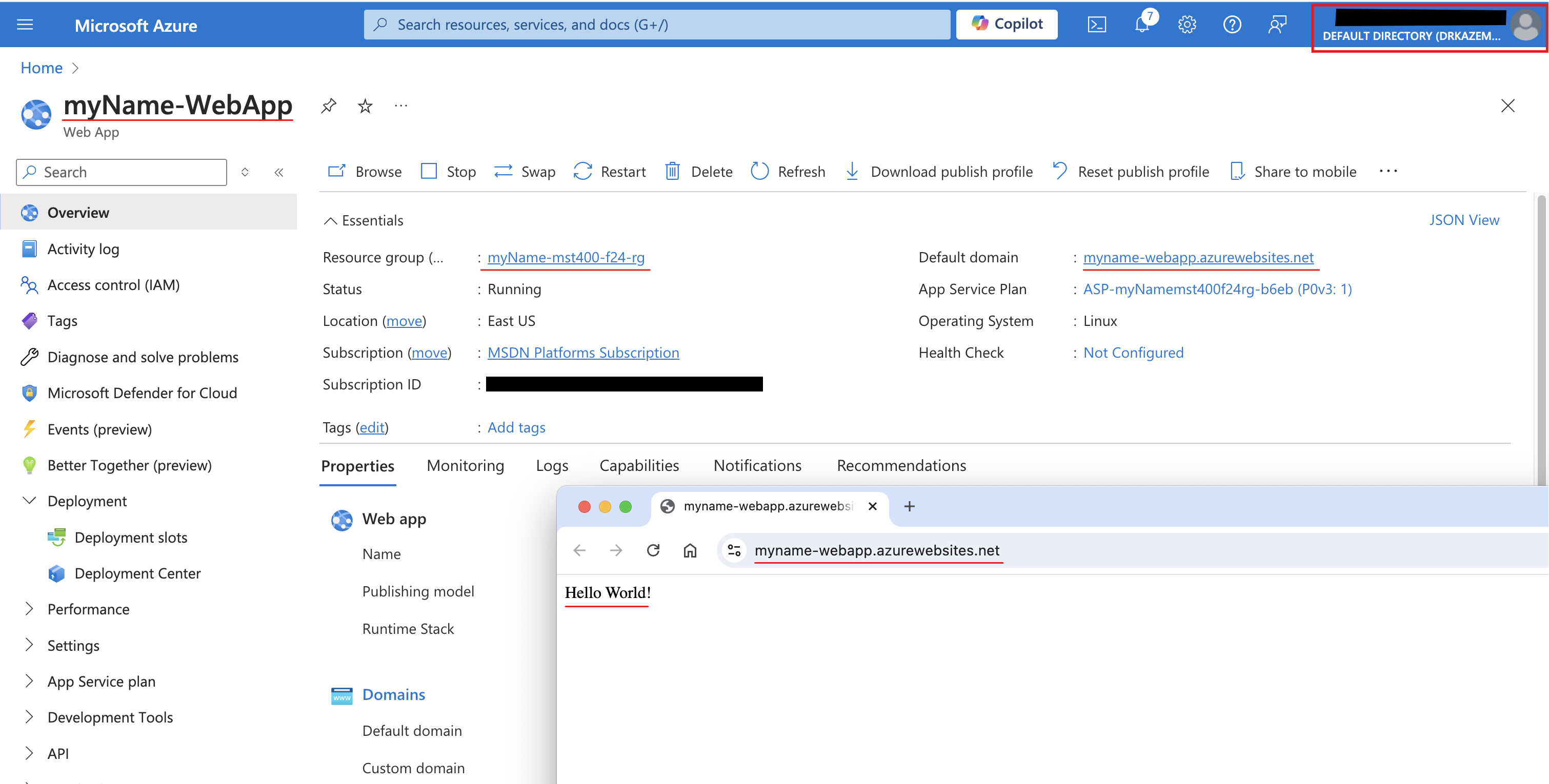
Setting Value Subscription your Azure subscription Resource group <yourName>-mst400-F67-rgWeb app name <yourName>-WebAppPublish Code Runtime stack PHP 8.2 Operating system Linux Region Canada Central Pricing plans accept the defaults Zone redundancy accept the defaults - Screenshot must show your Odl_user account, the deployed Web App overview page (<yourName>-WebApp)
Task 2: Create and configure a deployment slot 10 pts
In this task, you will create a staging deployment slot. Deployment slots enable you to perform testing prior to making your app available to the public (or your end users). After you have performed testing, you can swap the slot from development or staging to production. Many organizations use slots to perform pre-production testing. Additionally, many organizations run multiple slots for every application (for example, development, QA, test, and production).
-
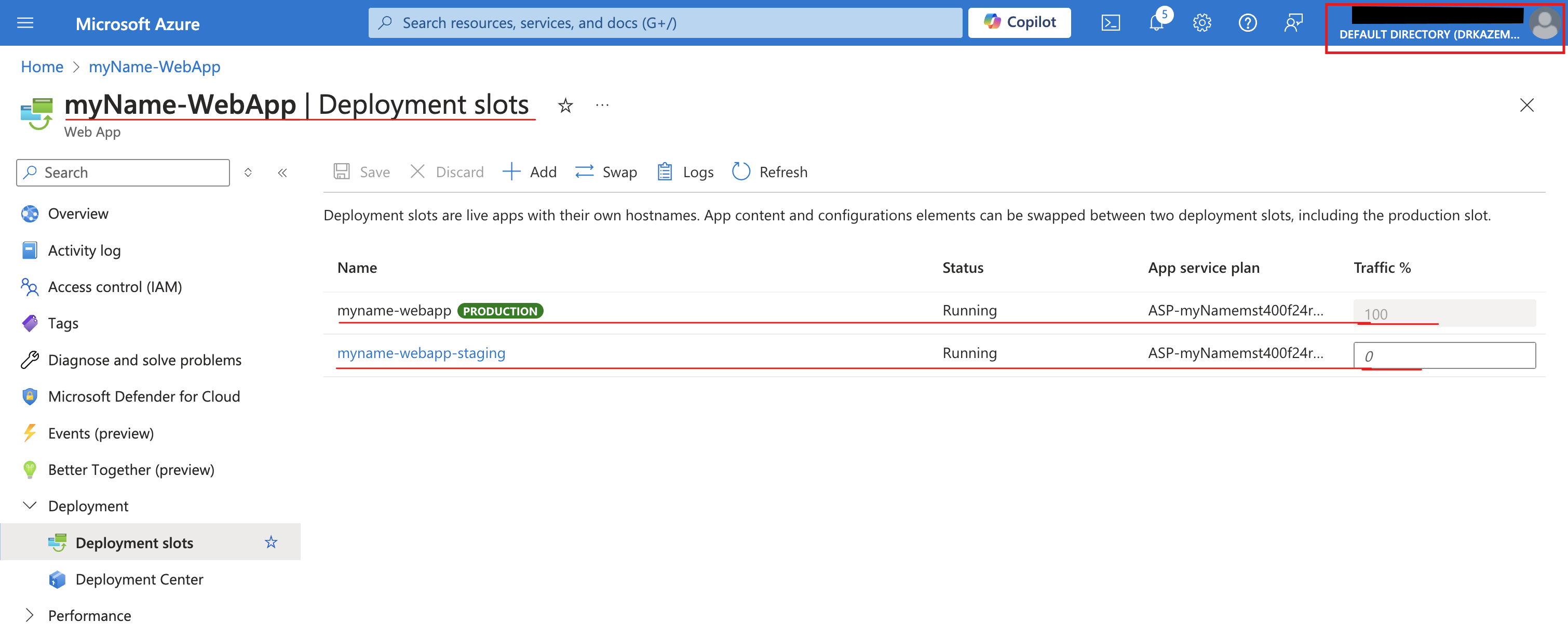
Setting Value Name stagingClone settings from Do not clone settings - Screenshot must show your Odl_user account, the Deployment slots blade with the newly created staging slot
Task 3: Configure Web App deployment settings 15 pts
In this task, you will configure Web App deployment settings. Deployment settings allow for continuous deployment. This ensures that the app service has the latest version of the application.
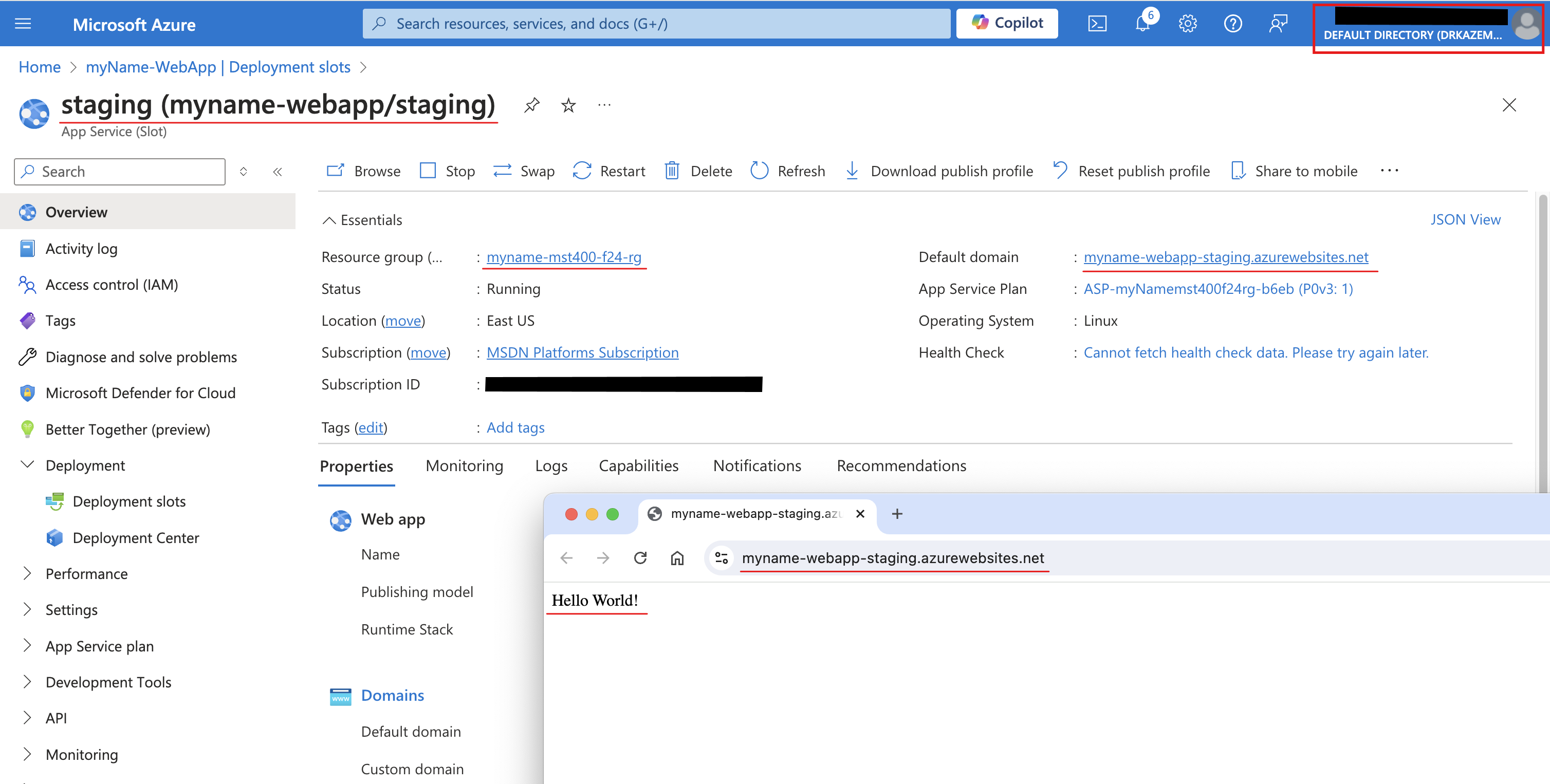
- Screenshot must show your Odl_user account, the staging slot web page displaying Hello World
Task 4: Swap deployment slots 15 pts
In this task, you will swap the staging slot with the production slot. Swapping a slot allows you to use the code that you have tested in your staging slot and move it to production. The Azure portal will also prompt you if you need to move other application settings that you have customized for the slot. Swapping slots is a common task for application teams and application support teams, especially those deploying routine app updates and bug fixes.
- Screenshot must show your Odl_user account, the production web page displaying Hello World!
Task 5: Create and configure an Azure Container App and environment 30 pts
Azure Container Apps take the concept of a managed Kubernetes cluster a step further and manages the cluster environment as well as provides other managed services on top of the cluster. Unlike an Azure Kubernetes cluster, where you must still manage the cluster, an Azure Container Apps instance removes some of the complexity to setting up a Kubernetes cluster.
-
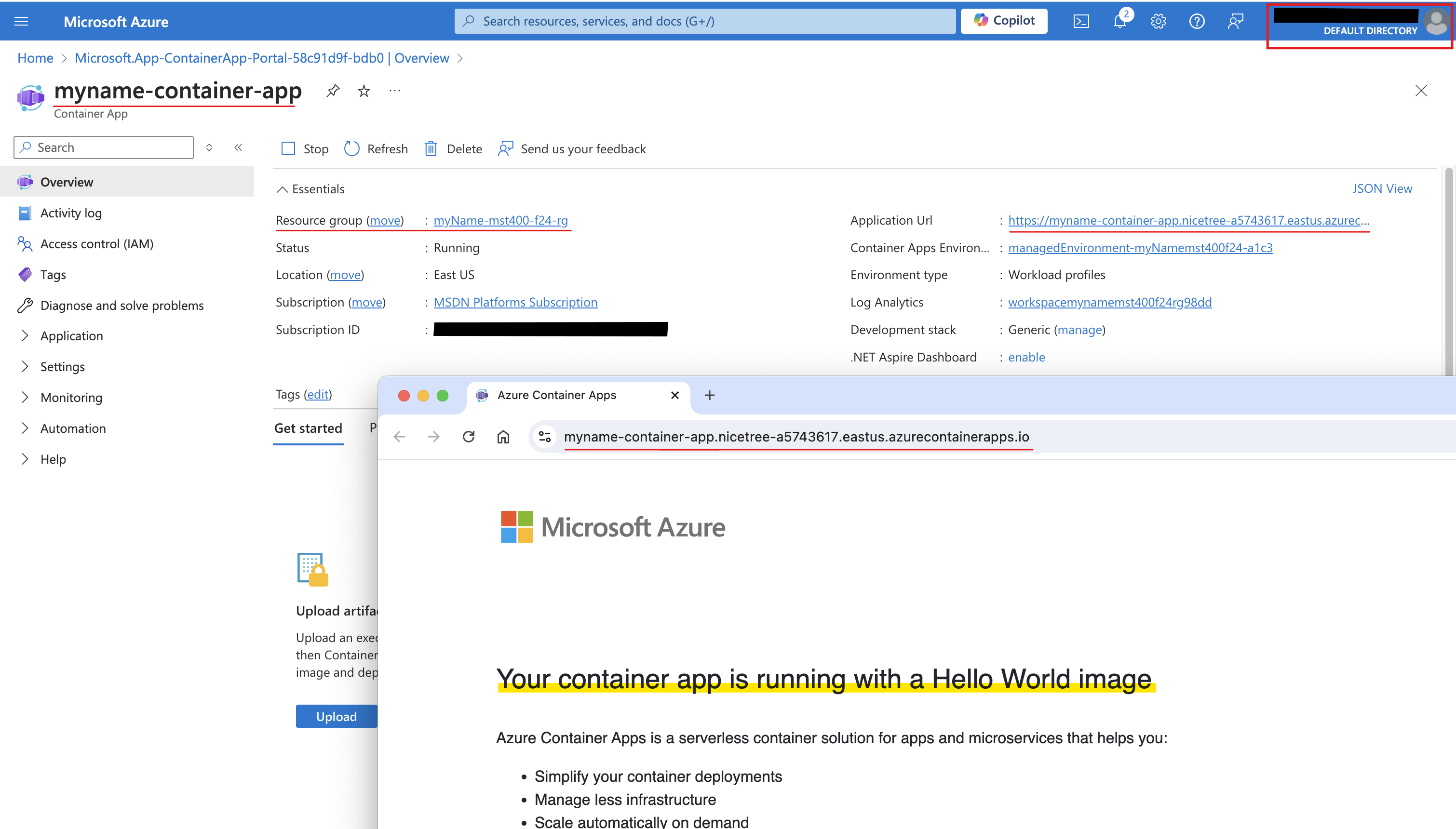
Setting Action Subscription Select your Azure subscription Resource group <yourName>-mst400-F67-rgContainer app name <yourname>-container-appRegion Canada Central Container Apps Environment Leave default - Screenshot must show your Odl_user account, the container app page displaying the Your Azure Container Apps app is live message
Task 6: Summary Questions & Review 20 pts
Minimum 2-3 sentences each — original thinking, your own words!
Sample screenshots reference
These are samples only. Your screenshots may vary, but they should include similar details.
Clean up your resources
Remember to delete any Azure resources created for this lab after capturing all your information and screenshots. Removing unused resources ensures you will not have unexpected charges and helps you manage your Azure credit for the course. Delete all resource groups except the Odl-Seneca-lab default resource group.
Your submission preview
Screenshots you attach above and your Task 6 answers appear here. This is exactly what prints/exported as your PDF.
MST400 Lab 06 - Implement Web & Container Apps
Name: . Account: ·
Professor: Dr. Kazemi