
How to use this page
- Work through Tasks 1–5 and tick each step as you complete it. Your progress and answers are saved in this browser automatically.
- Wherever you see
 Screenshot, capture your lab progress and attach the screenshot right on this page. Add a short explanation for each.
 - Answer the Task 6 questions, then use Print / Save as PDF to export your answers and screenshots as one submission file.
- Remember to delete your lab resources after capturing everything.
Lab Objectives and Architecture reference
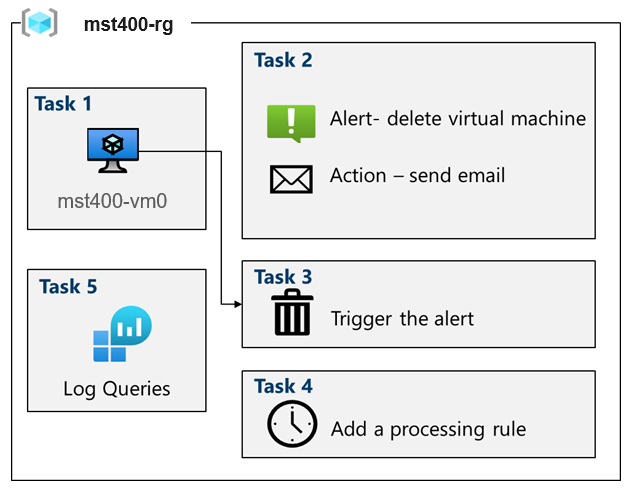
Lab scenario: You need to evaluate Azure functionality that would provide insight into performance and configuration of Azure resources, focusing in particular on Azure virtual machines. To accomplish this, you intend to examine the capabilities of Azure Monitor, including Log Analytics.
In this lab, you will:
- Task 1 — Use a template to provision an infrastructure 10 pts
- Task 2 — Create an alert and configure action group notifications 20 pts
- Task 3 — Trigger an alert and confirm it is working 15 pts
- Task 4 — Configure an alert processing rule 15 pts
- Task 5 — Use Azure Monitor log queries 20 pts
- Task 6 — Summary Questions & Review 20 pts
This is the environment you will monitor across Tasks 1–5.
Task 1: Use a template to provision an infrastructure 10 pts
In this task, you will deploy a virtual machine that will be used to test monitoring scenarios.
-
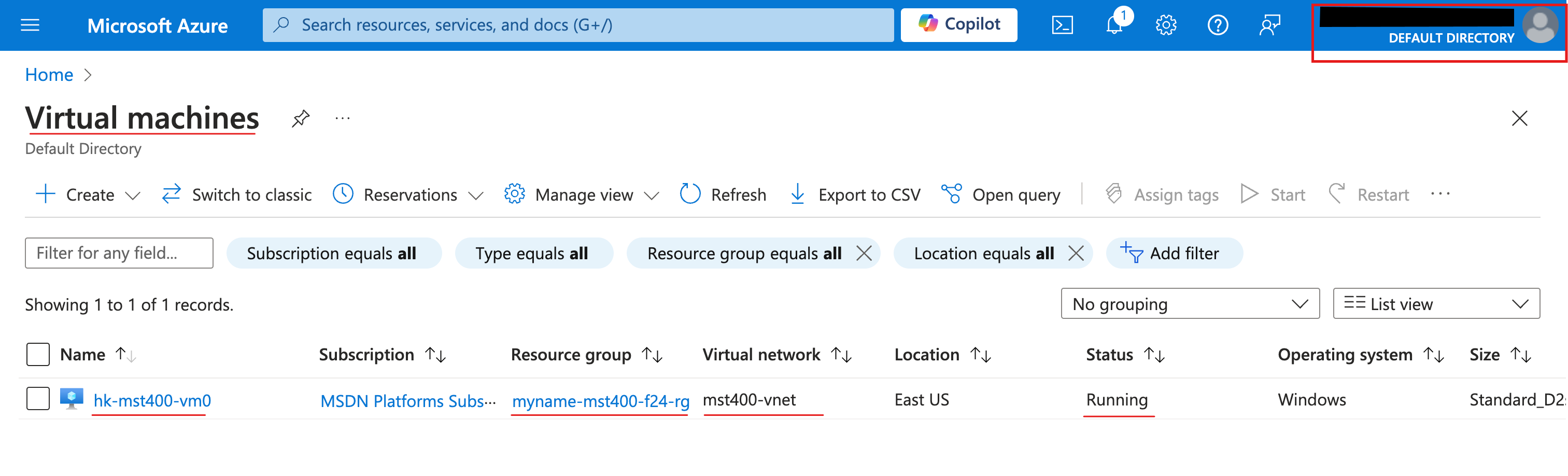
Setting Value Subscription Your Azure subscription Resource group <yourName>-mst400-F67-rg(select Create new)Region East US Username localadminPassword Provide a complex password Vm Name Prefix <your initials>-mst-F67-vm - Screenshot must show your Odl_user account, the deployed resources: one virtual network and one virtual machine in
<yourName>-mst400-F67-rg
Task 2: Create an alert and configure action group notifications 20 pts
First let’s configure Azure Monitor for virtual machines (this will be used in the last task).
-
Setting Value Subscription your subscription Resource group <yourName>-mst400-F67-rgRegion Global (default) Action group name Alert the operations team(must be unique in the resource group)Display name AlertOpsTeam -
Setting Value Notification type Select Email/SMS message/Push/Voice Name VM was deleted
-
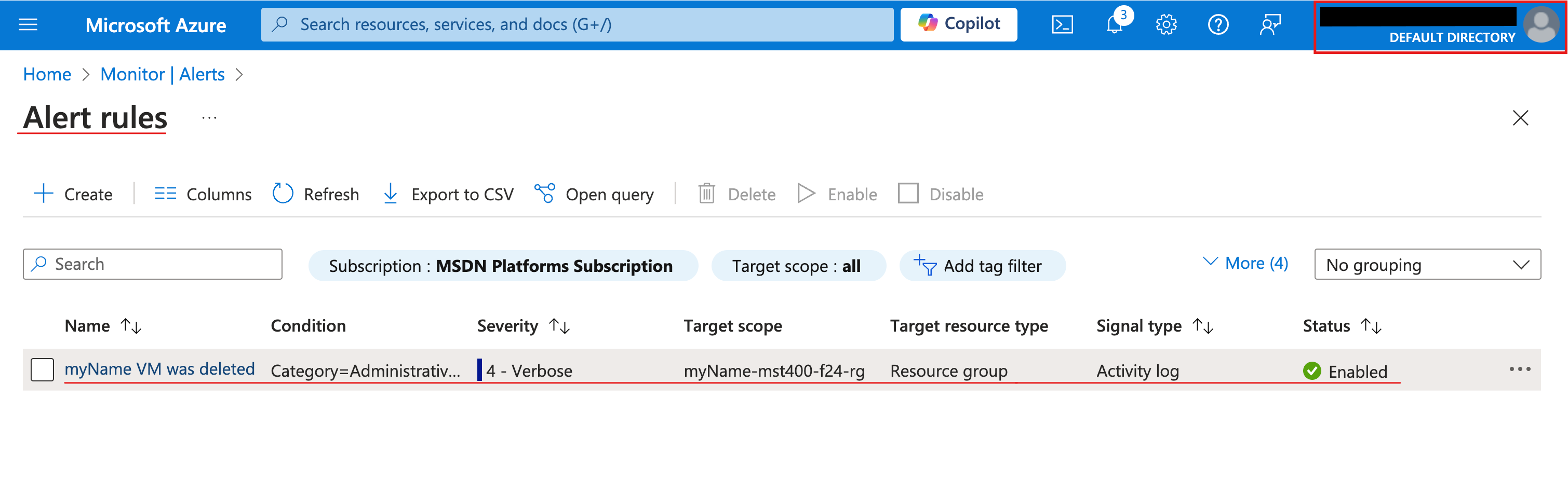
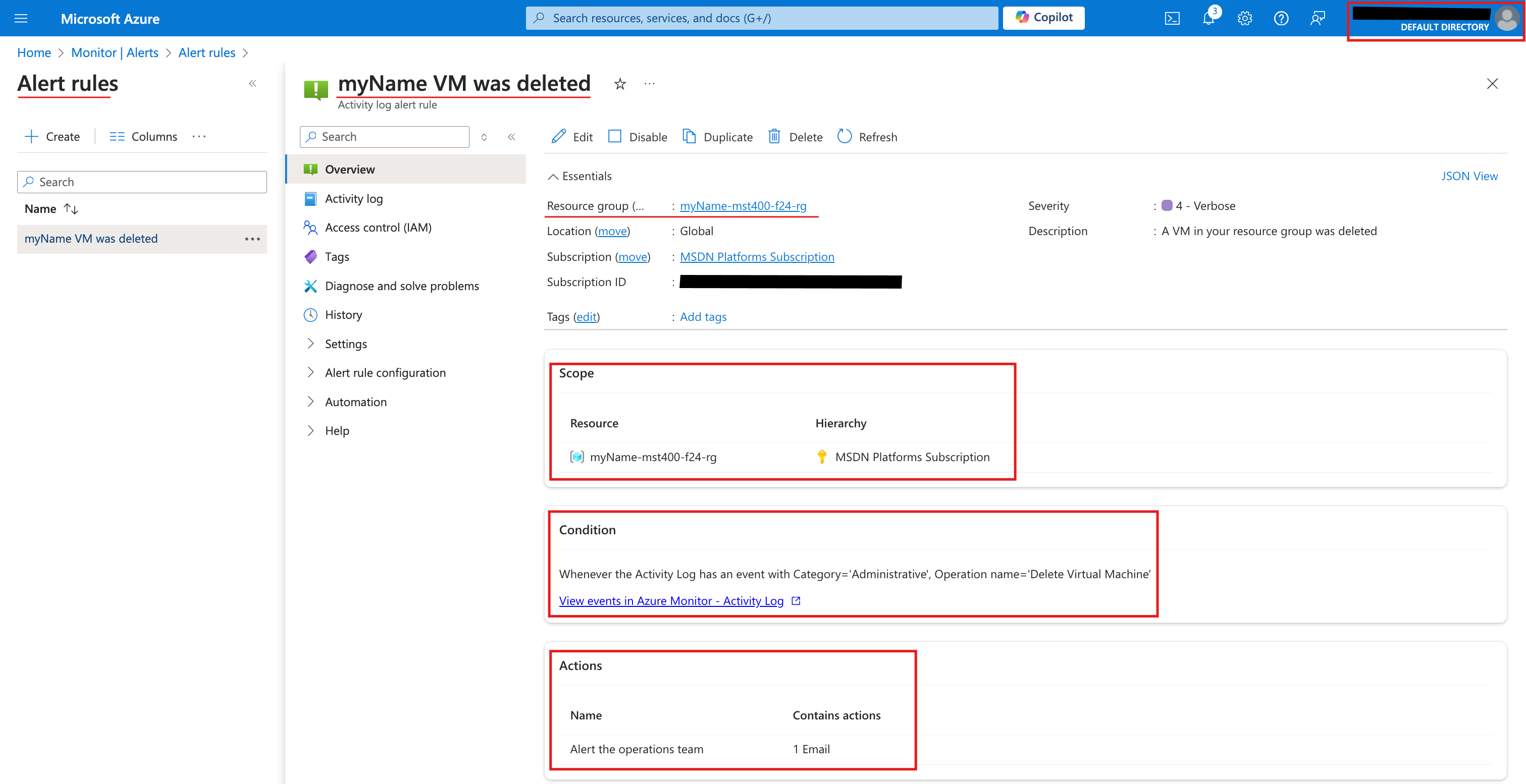
Setting Value Alert rule name VM was deletedAlert rule description A VM in your resource group was deleted - Screenshot must show your Odl_user account, the created alert rule
VM was deletedwith its description and theAlertOpsTeamaction group
Task 3: Trigger an alert and confirm it is working 15 pts
In this task, you trigger the alert and confirm a notification is sent.
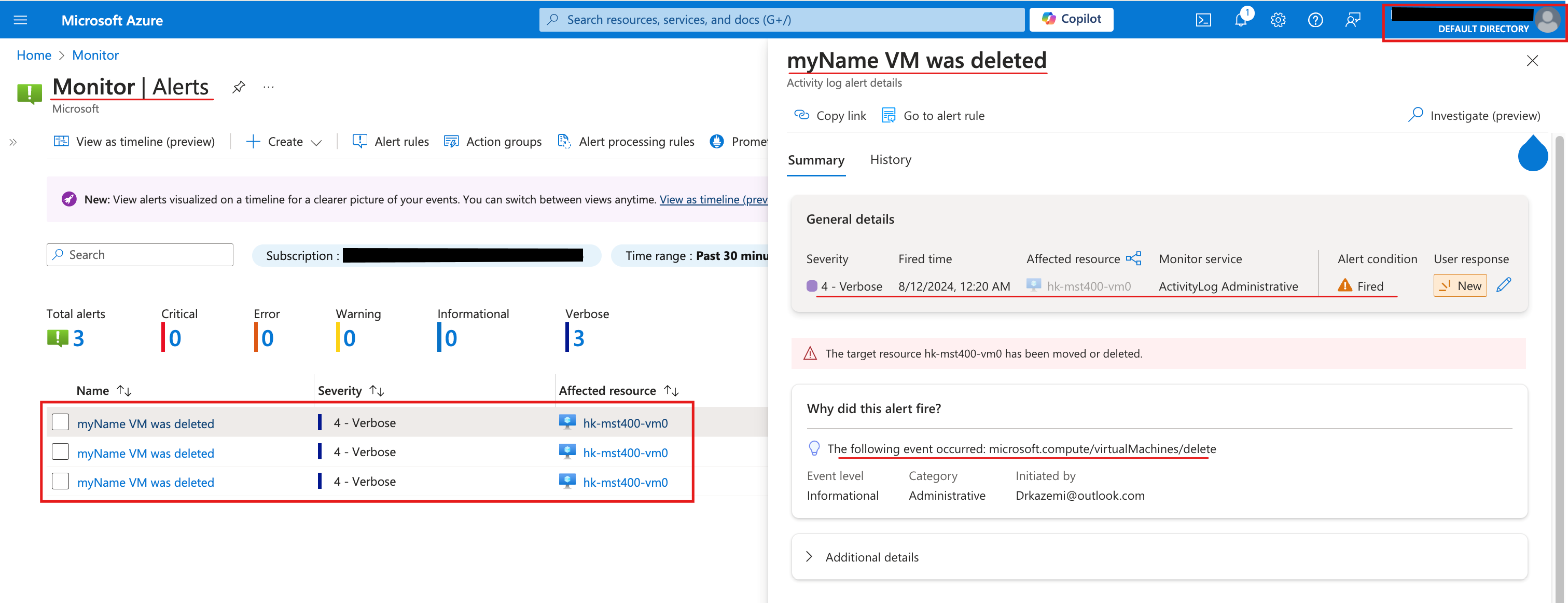
- Screenshot must show your Odl_user account, the Alert details pane for the
VM was deletedalert with its event details
Task 4: Configure an alert processing rule 15 pts
In this task, you create an alert rule to suppress notifications during a maintenance period.
-
Setting Value Apply the rule At a specific time Start Enter today’s date at 10 pm. End Enter tomorrow’s date at 7 am. Time zone Select the local timezone. -
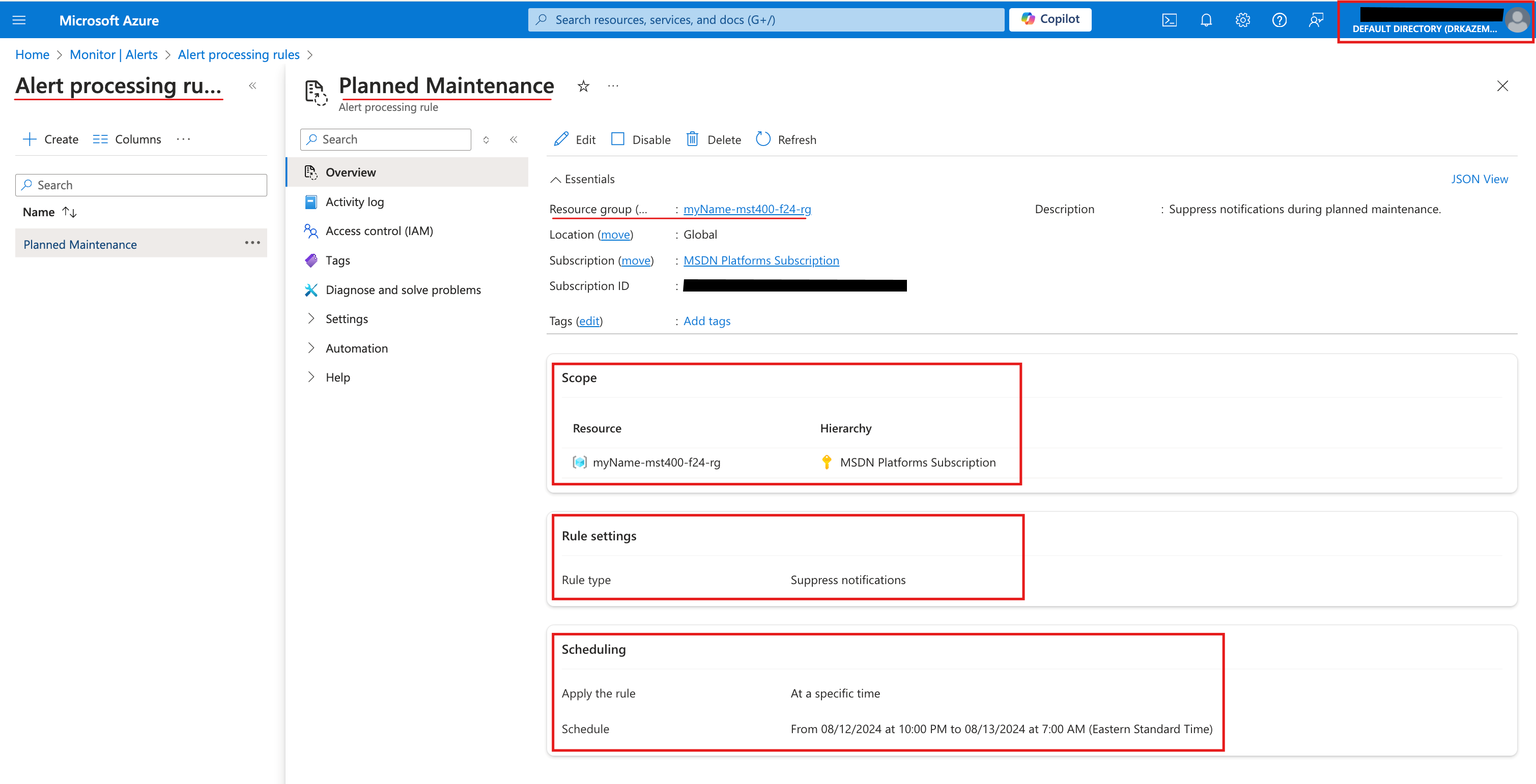
Setting Value Resource group <yourName>-mst400-F67-rgRule name Planned MaintenanceDescription Suppress notifications during planned maintenance. - Screenshot must show your Odl_user account, the alert processing rule
Planned Maintenancewith its overnight schedule (10 pm to 7 am) and its description
Task 5: Use Azure Monitor log queries 20 pts
In this task, you will use Azure Monitor to query the data captured from the virtual machine.
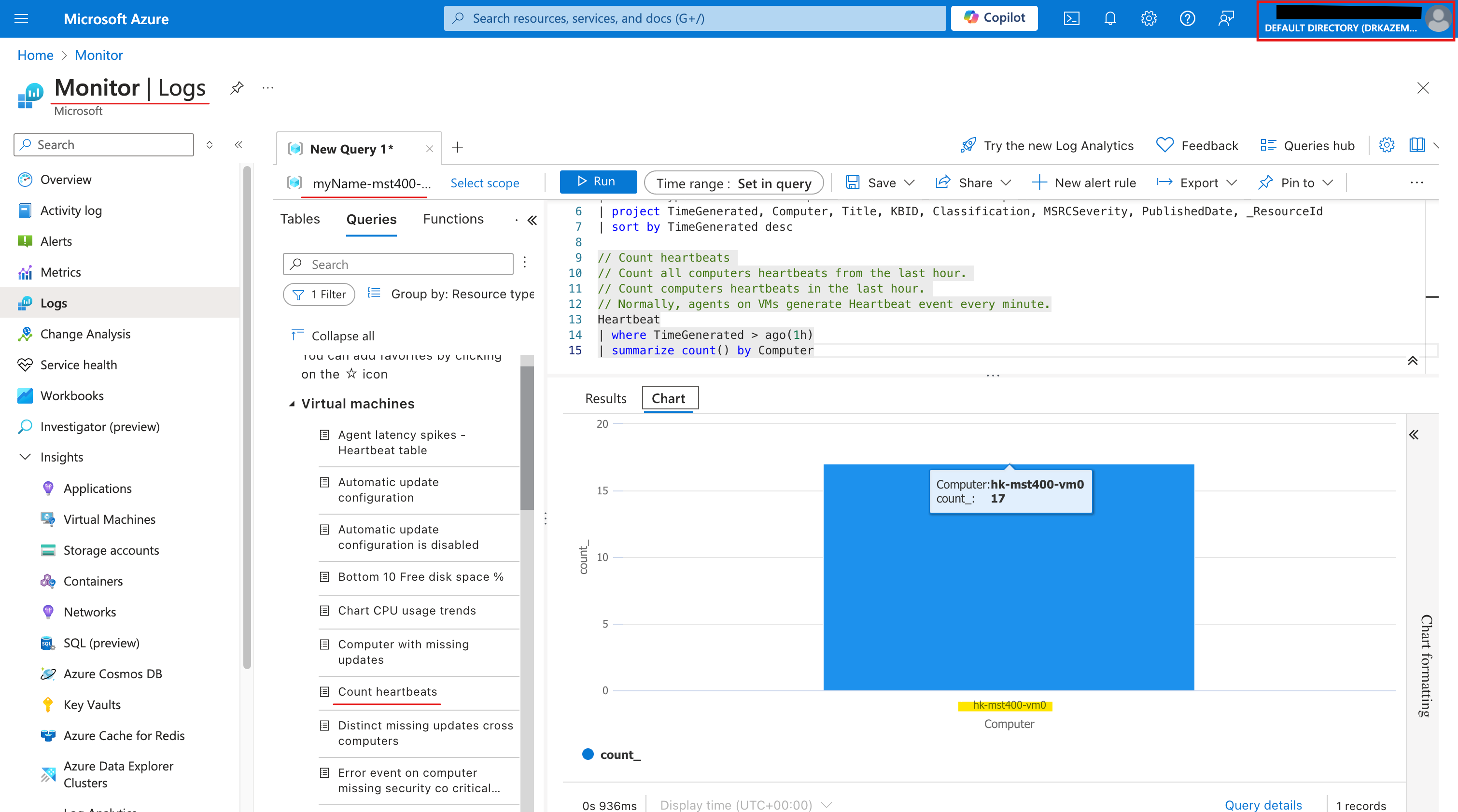
- Screenshot must show your Odl_user account, the
Count heartbeatsquery on theheartbeattable with the heartbeat count results -
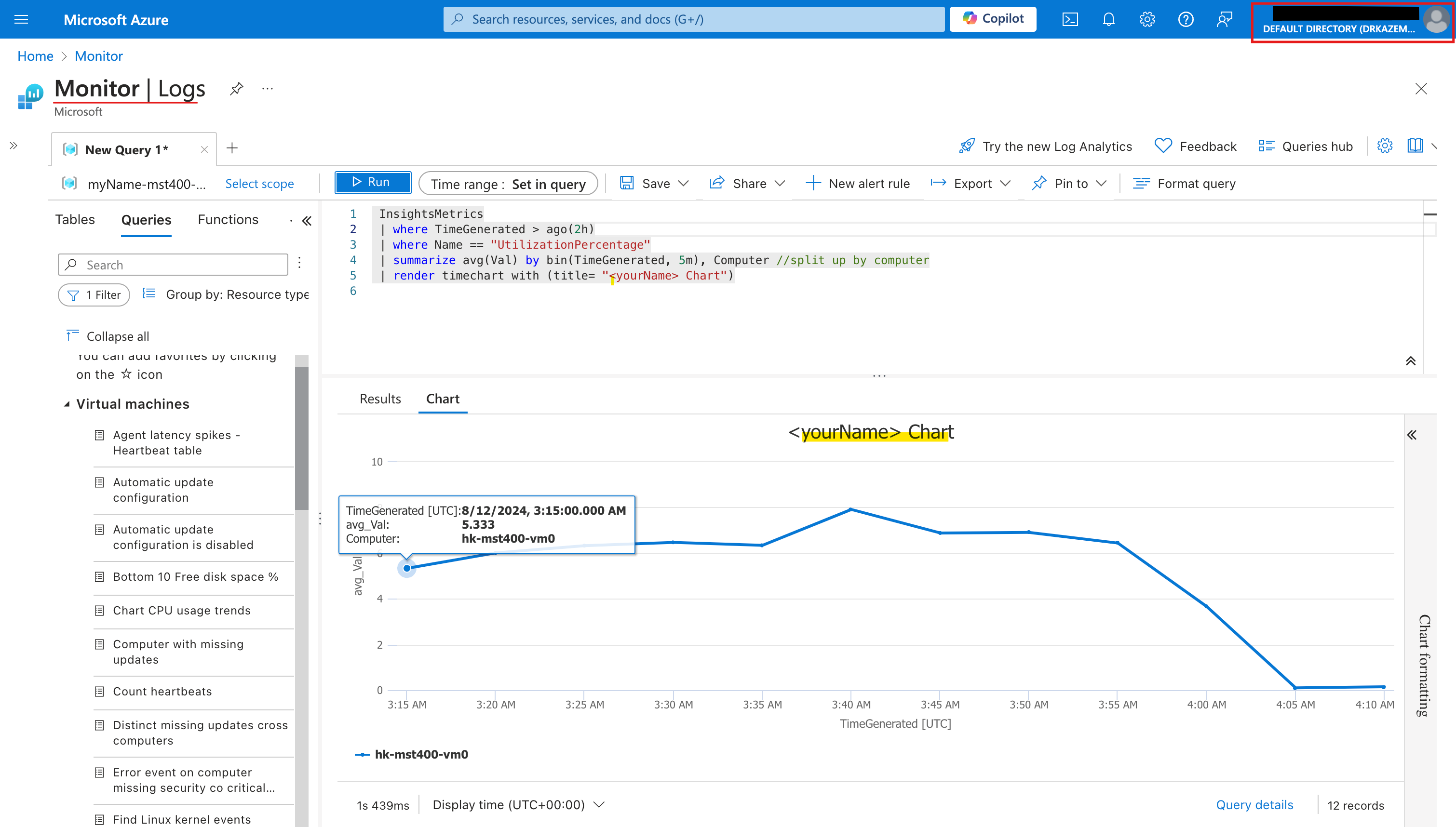
InsightsMetrics
| where TimeGenerated > ago(2h)
| where Name == "UtilizationPercentage"
| summarize avg(Val) by bin(TimeGenerated, 5m), Computer //split up by computer
| render timechart with (title= "<yourName> Chart")
Screenshot must show your Odl_user account, the InsightsMetricsUtilizationPercentagetimechart titled “<yourName> Chart”
Task 6: Summary Questions & Review 20 pts
Minimum 2-3 sentences each — original thinking, your own words!
Sample screenshots reference
These are samples only. Your screenshots may vary, but they should include similar details underlined.
Clean up your resources
Remember to delete any Azure resources created for this lab after capturing all your information and screenshots. Removing unused resources ensures you will not have unexpected charges and helps you manage your Azure credit for the course. Delete all resource groups except the Odl-Seneca-lab default resource group.
Your submission preview
Screenshots you attach above and your Task 6 answers appear here. This is exactly what prints/exported as your PDF.
MST400 Lab 08 - Implement Monitoring
Name: . Account: ·
Professor: Dr. Kazemi